
Intake Dashboard
Available to: UM Coordinator, Clinical Reviewer (RN), Medical Director (MD) Module: UM Minimum Permission: UM Intake - Standard
Overview
The Intake Dashboard is your primary workspace for receiving, triaging, and managing incoming healthcare documents. Whether documents arrive automatically via your fax provider integration or are uploaded manually, every document that enters Lilee lands here first, where AI-powered extraction and classification turn unstructured pages into structured, actionable work items ready for clinical review and authorization processing.
Use this feature when you need to:
View and process incoming faxes, PDFs, and uploaded documents
Triage documents across authorization, clinical, and administrative categories
Review AI-extracted data alongside the original document with highlighted bounding box overlays
Upload new documents individually or in bulk
Identify and resolve duplicate document submissions
Before You Begin
Make sure the following are in place before using the Intake Dashboard:
Note: If you do not see certain document categories in your sidebar, your administrator may not have enabled those document types for your organization. Contact your administrator to verify your form type configuration.
Understanding the Dashboard Layout
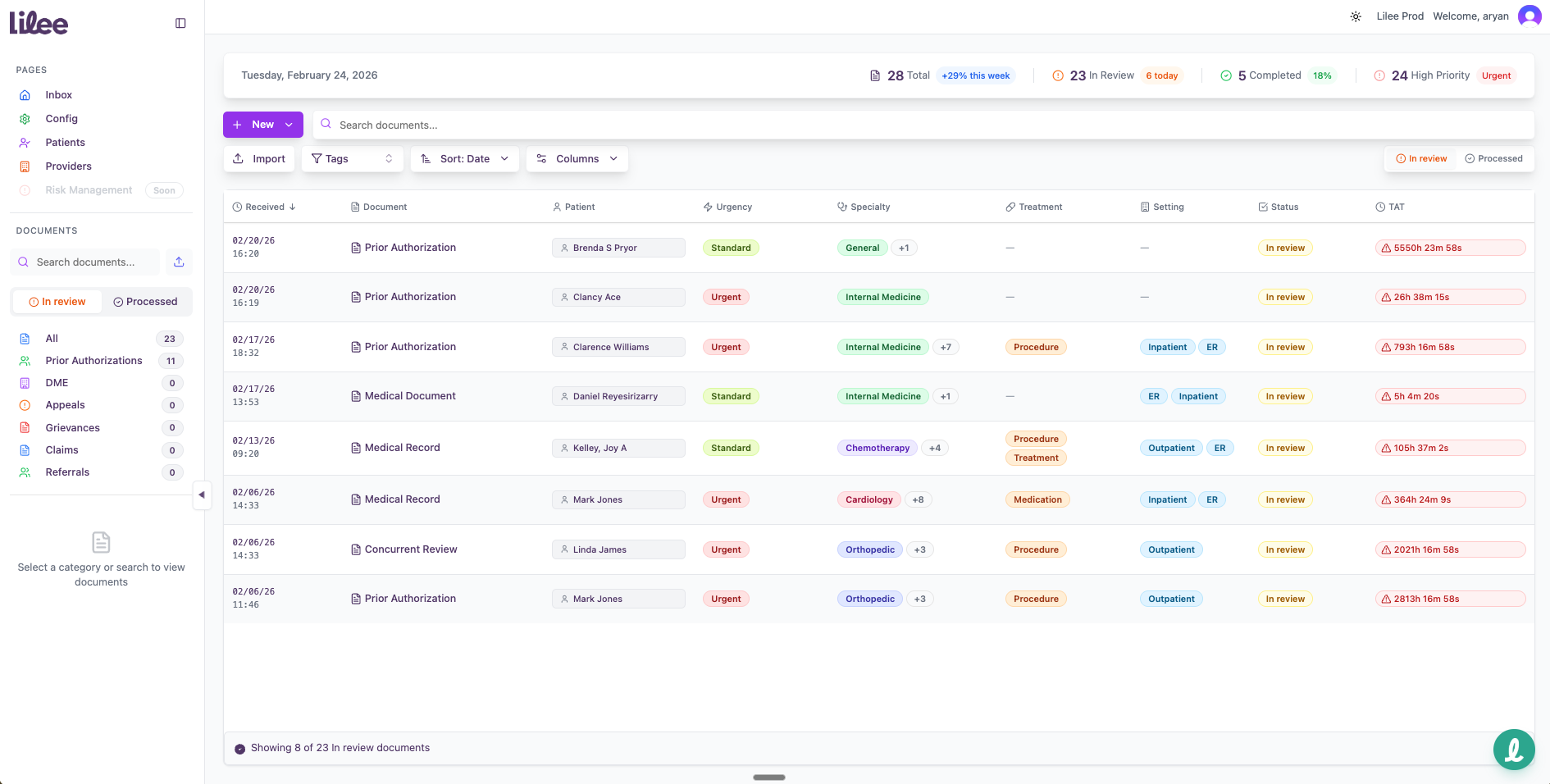
The Intake Dashboard uses a resizable multi-pane layout designed for efficient document processing. The workspace is divided into three main areas: the sidebar, the main document table, and the detail panes.
Stats Bar
At the top of the dashboard, a statistics bar provides a real-time snapshot of your workload. The bar displays today's date on the left and key metrics on the right:
Total -- The total number of documents in your inbox, with a weekly change indicator (for example, "+12 this week").
In Review -- Documents currently requiring attention, with a count of today's new arrivals.
Completed -- Documents that have been fully processed, with a completion percentage.
High Priority -- Documents flagged as urgent. This indicator appears with a pulsing icon when urgent items are present and is hidden when there are no urgent items.

Toolbar
Below the stats bar, a toolbar provides controls for managing your document queue:
New -- A dropdown button to create a new document by type. The available document types match your organization's configuration (payer or provider).
Search -- A full-text search field that filters documents across all visible columns.
Import -- Upload PDF documents into the platform.
Tags -- A searchable tag filter organized into eight categories: Urgency and Priority, Authorization and Admin, Referrals and Scheduling, Medical Specialties, Procedures and Treatments, Care Settings, Medical Conditions, and Document Types. Select one or more tags to filter the table. Active tag filters are displayed as removable badges below the toolbar.
Sort -- Choose a sort field (Date, Urgency, Provider/Payer, Patient, Document Type, Category, or TAT) and toggle between ascending and descending order.
Columns -- Show or hide individual table columns. Required columns (Document and Patient) cannot be hidden.
In Review / Processed -- Toggle between viewing active documents and completed documents.
Clear -- Remove all active search and tag filters (appears only when filters are active).

Sidebar
The collapsible left sidebar groups documents by AI-classified type. Each category displays a badge count of documents awaiting action. Click any category to filter the main table to that document type.
Payer organization categories:
All Documents
Every document in your inbox, regardless of type
Prior Authorization
Requests from providers for pre-approval of medical services or procedures
DME
Durable Medical Equipment authorization requests (wheelchairs, oxygen, CPAP, etc.)
Appeals
Member or provider appeals of adverse determinations
Grievances
Formal complaints from members about coverage or services
Claims
Claims-related documents
Referrals
Specialty referral requests
Provider organization categories:
All Documents
Every document in your inbox
Approval
Authorization approval notices received from payers
Denial
Adverse determination letters received from payers
Clinical Request
Payer requests for additional clinical documentation
Note: Your sidebar categories depend on whether your organization is configured as a payer or provider. You will only see the categories relevant to your organization type.
Main Document Table
The center of the dashboard displays a sortable, customizable table of all documents. Available columns include:
Date/Time
When the document was received
Patient Name
The member associated with the document
Provider (payer orgs) / Payer (provider orgs)
The counterparty on the document
Document Type
The AI-classified category
Tags
AI-generated healthcare tags (urgency, specialty, treatment, condition, setting)
Turnaround Time (TAT)
A countdown showing time remaining before the regulatory deadline
Urgency Level
Standard or urgent/expedited classification
Specialty
The clinical specialty associated with the request
Treatment (payer orgs) / Service Type (provider orgs)
The procedure or service requested
Status
Current processing state (In Review or Processed)
You can sort by any column, search across documents, filter by document type or tags, drag and drop columns to reorder them, and toggle column visibility through the column picker. Your column order, visibility, and sort preferences are saved automatically and persist across sessions.

Document Types
Lilee recognizes 12 document types. Documents are classified automatically by AI upon intake (whether received via fax integration or manual upload), with different types available depending on your organization type.
Prior Authorization
Payer
Authorization requests for medical services or procedures
DME
Payer
Durable Medical Equipment authorization requests
Appeals
Payer
Appeals of adverse determinations
Grievances
Payer
Member complaints and grievances
Claims
Payer
Claims-related documentation
Referrals
Payer
Specialty care referral requests
Concurrent Review
Payer
Continued stay or extension review requests for existing authorizations
Approval
Provider
Authorization approval notices from payers
Denial
Provider
Adverse determination letters from payers
Clinical Request
Provider
Requests from payers for additional clinical documentation
Medical Record
Both
Clinical records, lab results, physician notes
Other
Both
Documents that do not match a specific configured type
How AI Classification Works
When a document is received (via fax integration or upload), Lilee's AI analyzes the content to determine its type:
Payer classification focuses on whether the document initiates, modifies, disputes, or adjudicates a payer workflow. Clinical notes, therapy notes, and lab results that reference authorizations are classified as "Other" or "Medical Record" rather than as authorization documents.
Provider classification focuses on whether the document is a formal payer-to-provider communication requiring a specific workflow response (an approval notice, a denial letter, or a documentation request).
If the AI classifies a document incorrectly, you can reclassify it:
AI Reclassification -- Let the AI re-analyze the document with updated context.
Manual Reclassification -- Select the correct document type yourself from a dropdown.
Tip: If a single upload contains multiple document types bundled together (a common scenario with faxes), Lilee detects this and flags it as "Multiple Documents Detected." Use the split workflow to separate the bundled file into individual documents, which are then classified and grouped automatically.
Step-by-Step: Processing Incoming Documents
Step 1: Receive or Upload Documents
Documents enter Lilee through several methods:
Fax provider integration -- Lilee integrates with any fax provider (e.g., eFax, RingCentral, OpenText, Consensus, or your existing provider). Incoming faxes are automatically received and ingested into the Inbox without manual intervention. This is the primary intake method for most organizations, as the majority of prior authorization and clinical documents in healthcare are still transmitted via fax.
Direct upload -- Click the Upload button in the toolbar to browse and select files from your computer. Lilee accepts PDF and image files (JPEG, PNG). You can also drag and drop files anywhere onto the application window — the entire app acts as a global drop zone.
Bulk upload -- Select multiple files at once. A progress indicator tracks each file's upload and processing status independently.
Note: Your organization's fax integration is configured during onboarding. Once connected, faxes flow into Lilee automatically — no manual download or upload required.
When documents arrive (whether via fax integration or manual upload), you can enable the Split Detection toggle. This tells the AI to check whether a single file contains multiple distinct documents bundled together, such as an authorization request form followed by supporting medical records. When detected, the system splits them into separate reviewable items and automatically groups related documents together (for example, an authorization request is grouped with its supporting clinical records for the same member).

Tip: Keep split detection enabled, especially for fax intake. Faxed documents frequently bundle multiple document types into a single transmission, and automatic splitting saves significant manual triage time.
Step 2: Monitor AI Processing for Manual Uploads
After intake, each document moves through an automated AI processing pipeline:
OCR/AI extraction -- Text and structured data are extracted from the document using AI-powered optical character recognition.
Document classification -- The AI classifies the document into one of your organization's configured document types.
Request classification -- For prior authorization and DME documents, the system further classifies the type of request (such as procedure authorization versus medication authorization).
Field extraction -- Specific data fields are extracted based on the document type: patient information, procedure codes (CPT/HCPCS), diagnosis codes (ICD-10), dates, provider details, and more.
Tag analysis -- AI generates healthcare tags across eight categories: urgency, prior authorization, referral, specialty, treatment, setting, condition, and document type.
Summary generation -- A human-readable summary of the document is created.
Clinical review -- For applicable document types, AI performs clinical criteria matching against Medicare coverage policies.
A progress indicator at the top of the page shows the real-time processing status for each file (that you manually upload - we can talk with IT to connect directly with your fax provider). Documents appear in your inbox with a "processing" status while the pipeline runs, then update to "In Review" once processing is complete.

Step 3: Triage Documents by Category
Once processing completes, documents are automatically sorted into their classified category in the sidebar.
Click a sidebar category to view only documents of that type.
Review the badge counts to identify which categories have the most pending items.
Use the search bar above the table to find specific documents by patient name, provider, or other identifying information.
Apply tag filters to narrow results further -- for example, filtering by the "Urgent" tag to focus on time-sensitive items first.

Step 4: Open and Review a Document
Select a document from the table to open the detail view. Multiple panes become available for reviewing the document and its extracted data.
Click a row in the document table to select it.
The Document Viewer pane opens, displaying the original PDF or image with full page navigation and zoom controls (fit width, fit page, zoom in/out, specific percentage).
Bounding box overlays appear as highlighted regions on the document. These correspond to specific data fields the AI extracted. Hover over or click a bounding box to see a tooltip showing the extracted value and the field name it was mapped to.

Tip: Bounding box overlays let you quickly verify that the AI extracted the correct values by seeing exactly where on the original document each data point was found. This is especially valuable for handwritten faxes or low-quality scans.
Step 5: Verify Extracted Data in the Detected Workflow Pane
Open the Detected Workflow pane from the toolbar to review all structured data extracted from the document. This pane includes three main sections:
Summary tab: An AI-generated summary of the document in plain language.
Tags: AI-generated healthcare tags that you can edit, add, or remove. Tags are color-coded and filterable on the dashboard.
Document analysis table: A structured view of all extracted fields. The fields displayed depend on the document type:
Prior authorization: Urgency, document date, document timestamp, member name, member ID, date of birth, prescribing provider (name, phone, fax), facility name, auth type, diagnoses (with ICD-10 code lookup), procedures (with CPT code lookup), place of service (inpatient/outpatient).
DME: Urgency, date, timestamp, member name, member ID, date of birth, prescribing provider, facility name, auth type, diagnoses, procedures, place of service (inpatient/outpatient).
Approval (provider orgs): Document date, document timestamp, member name, member ID, date of birth, approval number, approval date, approved services, valid from/to dates, number of units approved, special instructions.
Denial (provider orgs): Document date, document timestamp, member name, member ID, date of birth, denial number, denial date, denied services, denial reason, denial code, appeal rights information, appeal deadline, contact information, additional notes.
Clinical request (provider orgs): Document date, document timestamp, member name, member ID, date of birth, request number, request date, requested information type, request reason, urgency level, response deadline, contact information, submission instructions.
All extracted fields are editable -- click any field to correct the AI's extraction. Each field also has a checkbox so you can mark it as reviewed and confirmed.
Validation features run automatically:
Member validation -- Extracted member IDs are validated against your connected EHR system.
Provider validation -- Provider names and NPIs are validated against your provider directory.
Facility validation -- Facility names are matched against known facilities.
Payer validation -- Payer information is matched against your payer directory.
ICD-10 code picker -- Search and select diagnosis codes from the full ICD-10 code set.
CPT code picker -- Search and select procedure codes.

Important: Always verify member ID, procedure codes, and diagnosis codes before proceeding to clinical review or authorization submission. Accurate extraction of these fields is critical for correct clinical review results and successful authorization submission to your EHR.
Step 6: Reclassify Documents (If Needed)
If the AI misclassifies a document, you can reclassify it:
Open the document you want to reclassify.
Choose AI Reclassification to let the AI re-analyze and assign a new type, or choose Manual Reclassification to select the correct document type yourself from a dropdown.
The document moves to the appropriate sidebar category, and the extraction pipeline re-runs using the correct document type schema to extract the relevant fields.

Note: AI reclassification is available for most document types except concurrent review, other, and multiple documents detected. Manual reclassification is available for the same types plus medical record.
Document Status Workflow
Documents move through two primary states:
In Review -- Active documents that require your attention. This is the default view when you open the dashboard.
Processed -- Documents that have been fully reviewed and completed.
Toggle between these views using the In Review and Processed tabs at the top of the document table.
Duplicate Detection
Lilee automatically detects potential duplicate documents by clustering documents that share the same patient and document type and were received within a 72-hour window. When duplicates are detected:
A Review Duplicate Clusters option appears on the dashboard.
Click it to open the Review Duplicate Clusters modal. Each cluster is labeled (Cluster A, Cluster B, etc.) and shows the number of potential duplicates and the matching criteria used.
Review each cluster. Documents are displayed as cards showing the document type, patient name, received time, provider, page count, and service dates.
Click document cards to toggle which versions to Keep. Unselected versions will be archived when you apply the resolution.
If you selected two or more documents, click Compare to open a side-by-side view with PDF previews of each selected document, making it easy to spot differences.
Click Apply on a cluster to archive the unselected versions. You can resolve clusters individually -- you do not need to resolve all clusters at once.
The modal supports an expanded view with a sidebar listing all clusters for quick navigation between them. Resolved clusters are marked with a green checkmark.

Compliance Checkpoint: Duplicate detection helps prevent duplicate authorization submissions to your EHR system. Archived documents are removed from your active queue but remain in the system for audit purposes. Review flagged duplicates before processing to avoid creating duplicate authorization records.
Turnaround Time (TAT) Tracking
Every document in your inbox displays a turnaround time countdown based on regulatory requirements:
Urgent / Expedited
72 hours (3 days) from the document timestamp
Warning at fewer than 12 hours remaining
Standard
168 hours (7 days) from the document timestamp
Warning at fewer than 24 hours remaining
The TAT column uses color-coded indicators:
Gray badge
Normal -- sufficient time remaining
Amber badge
Warning -- approaching the deadline
Red badge
Overdue -- the deadline has passed
The countdown displays hours, minutes, and seconds remaining, along with a progress bar showing how much of the total time has elapsed.
Compliance Checkpoint: CMS requires that standard prior authorization determinations be completed within the applicable timeframe, and expedited requests within 72 hours. Lilee tracks these deadlines automatically from the moment the document is received. Monitor the TAT column throughout the day and prioritize amber and red items to maintain regulatory compliance.
Detail Panes Reference
When you select a document from the table, multiple detail panes become available via toggle buttons in the toolbar:
Document Viewer
View the original PDF or image with zoom controls, page navigation, and clickable bounding box overlays showing extracted data
Detected Workflow
Review all AI-extracted fields, edit values, validate member and provider data, and manage tags
Clinical Review
View AI clinical criteria matching against Medicare NCD/LCD policies and the recommendation
Authorization Review
Prepare and submit authorizations to your EHR system
History
Browse the patient's complete document timeline with cross-navigation
Notes
Add and view collaborative notes (general, clinical, administrative, follow-up) with user attribution
Nurse Letter
Generate, edit, and send AI-powered clinical review letters via email
Each pane is covered in detail in its own feature guide. See the Related Features section below for links.
Tips and Best Practices
Efficiency: Use sidebar categories and tag filters together to build focused work queues. For example, select Prior Authorization in the sidebar and filter by the "Urgent" tag to surface the most time-sensitive authorization requests.
Accuracy: Enable split detection for all fax uploads. Bundled faxes are common in healthcare workflows, and automatic splitting ensures each document receives the correct classification and field extraction.
Organization: Customize your table columns to match your workflow. Drag columns to reorder them and hide columns you do not use regularly through the column picker. Your column configuration persists across sessions.
Verification: Use bounding box overlays in the Document Viewer to spot-check AI extraction accuracy. Click the highlighted regions to compare extracted values against the original document text.
Compliance: Check the stats bar at the start of each session. If urgent items are present, prioritize those first. Sort the table by turnaround time to surface cases closest to their deadlines.
Collaboration: Use the Notes pane to communicate with team members about specific documents without leaving the platform. Notes are attributed to the authoring user and appear in chronological order.
Troubleshooting
I do not see any document categories in my sidebar
Your organization type or form types may not be configured
Contact your administrator to verify settings under Config > Form Types
A document is stuck in "processing" status
The AI processing pipeline may have encountered an error
Check the navbar progress indicator for error details. If the error persists, try re-uploading the document
Extracted fields are missing or incorrect
The document may have poor scan quality, or the AI classification may be wrong
Try reclassifying the document to the correct type. For low-quality scans, verify and correct fields manually in the Detected Workflow pane
I uploaded a bundled fax but it was not split
Split detection may have been disabled during upload
Re-upload the file with the Split Detection toggle enabled
Duplicate detection is not flagging known duplicates
The documents may differ enough that the AI considers them distinct
Review the documents manually and discard duplicates from the document table
Tags are missing or look incorrect
Tag analysis is a separate processing step that may still be running
Wait for processing to complete fully. You can also manually edit tags in the Detected Workflow pane
Related Features
Clinical Review -- After verifying extracted data on the Intake Dashboard, proceed to clinical review to evaluate medical necessity against Medicare LCD/NCD policies.
Authorization Review -- Once clinical review is complete, use the Authorization Review pane to prepare and submit authorizations to your EHR system.
Ellie AI Assistant -- Use Ellie's quick actions directly from the dashboard to get AI-powered analysis, code validation, and next-step suggestions for any selected document.
Last updated: February 24, 2026 | Version: 1.0
Last updated
Was this helpful?